There. They are few packages developed over time, one of them is official and extremely powerful.
Three Library that is used to convert your Python 2 code to Python 3 code.
- 2to3 (Offical, recommended)
- Python Future + Futurize
- Six + Modernize
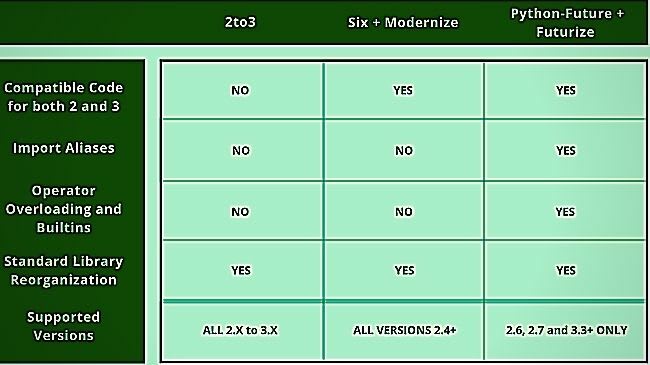
Now at this point, you definitely thinking well, what’s the difference between, 2to3, Python Future + Futurize, and Six + Modernize.
Here’s your answer!
What’s the difference between
Automated tools for PY2 to PY3 conversion/compatibility?
How to convert Python 2 to Python 3
This can be very easy if you use any of the above libraries (do not forget to make sure the compatibility)
There are two approaches for converting Python 2 to python 3.
Method #1: Convert Python 2 to python 3 using web-tool.
There is a simple tool for converting python 2 to python 3.
you can use a web application to convert python 2 to 3.
This tool is:
- 100% FREE
- Compatible with All versions of Python
- Actively maintained
Method #2: Convert Python 2 to python 3 using a python library.
We can convert Python2 scripts to Python3 scripts by using the 2to3 module. It changes Python2 syntax to Python3 syntax. We can change all the files in a particular folder from python2 to python3.
Step 1: Open your terminal and navigate to your File
Open your terminal or CMD depend on whatever you are using Windows or Linux.
Navigate to the directory where your python file(s) is/are located. (of course, using the “cd” command)
Step 2: Install the library
As usable, use pip to install 2to3, use can use any other library as well, I like 2to3
Command: pip install 2to3

