Showing posts with label svn. Show all posts

Monday, July 4, 2022

Subversive (SVN) manual installation in eclipse

Step-1

  • Go to Eclipse
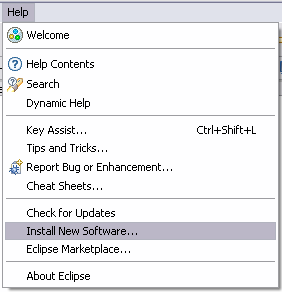
  • Click on Help
  • Click on Install New Softwares
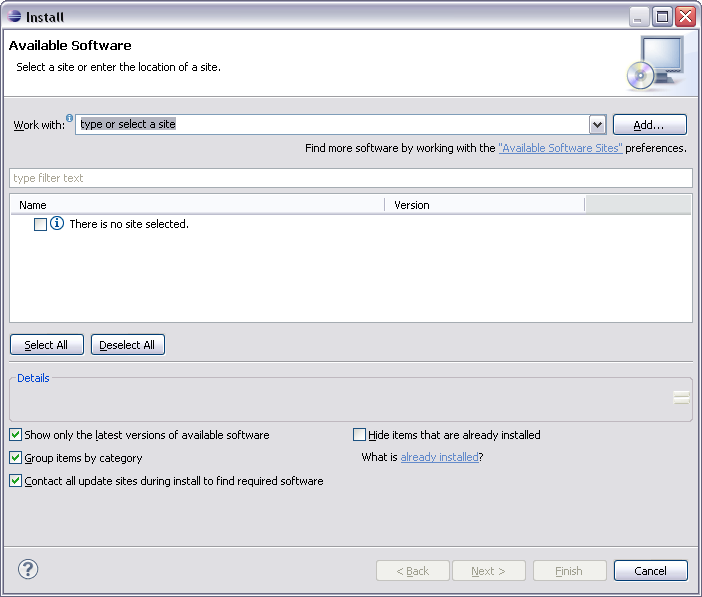
  • Click on Add Button
  • Provide Name SVN Connector
  • Add URL: http://community.polarion.com/projects/subversive/download/eclipse/6.0/update-site/
  • Click OK button

Step-2

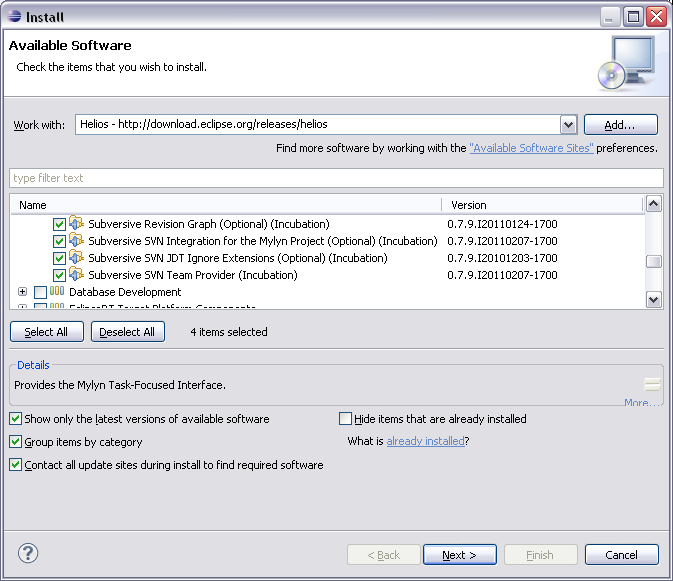
You will see two available packages for Subversive SVN Connectors. Select both and click Next.

Step-3

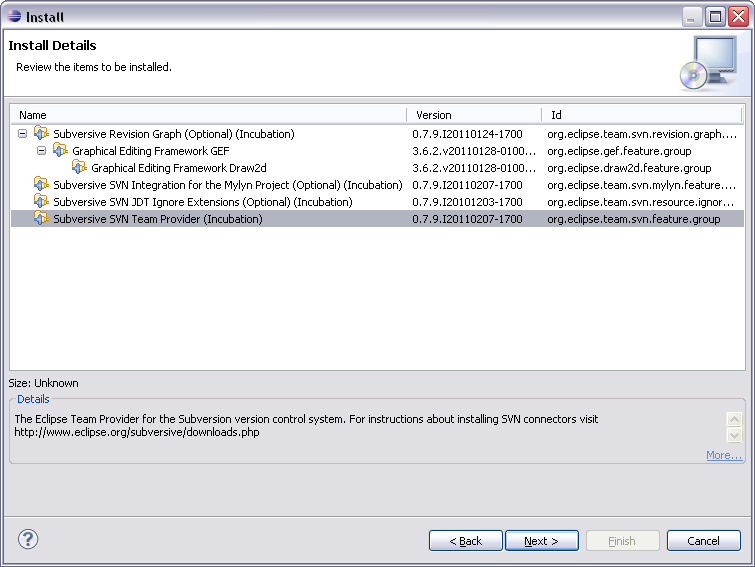
On next screen, you will see all packages which will be installed on your Eclipse IDE.

Click Next and Install packages. Once done – please restart your Eclipse.

How to verify if SVN Connector is installed correctly or not?

  • Go to Eclipse Tab
  • Click on Preferences
  • Search for SVN
  • Click on SVN Connector Tab
  • You should see SVNKit name there instead of Blank space.

Other way to verify:

Just refresh your SVN Repository and you should see all folders from SVN like tags, assets, trunk, etc will be loaded successfully.

And you are all set. Now continue following step-6 onwards from other tutorial which we mentioned above.

Subversive (SVN) installation in eclipse

Subversive installation instructions

Subversive can be simply installed from within Eclipse using update manager. All what the user should do is just point update manager to the remote or local update site. To install Subversive:

  1. Start Eclipse and select menu item 'Help > Instal New Software...'

    Software Updates

  2. Then selec common software repository or if you need to install Subversive only, you can directly add Subversive update site by pressing 'Add' button.

    Update manager

  3. On the 'Add Repository' form enter the URL to the Subversive update site. The proper URL can be found on http://www.eclipse.org/subversive/downloads.php. Also the update-site for Subversive integration plug-ins can be added in the same way.
    • Please note that the use of the software you are about to access may be subject to third party terms and conditions and you are responsible for abiding by such terms and conditions.

    Click on the 'OK' button to store update site information.

    New update site

  4. The Subversive software can be found in the common software repository in 'Collaboration Tools' section and provides following features list.
      Required feature, which should be installed unconditionally:
    • SVN Team Provider - The Eclipse Team Provider for the Subversion version control system.


    • Optional integrations with other plug-ins, which can be installed if you use these plugins and want to have them integrated with Subversive:
    • Subversive Integration for the Mylyn Project - Integration with Mylyn (http://www.eclipse.org/mylyn/).


    • Other optional features:
    • JDT Ignore Extensions - The feature is useful for Java development because it allows to interpret output folders as ignored resources automatically.
    • Revision Graph - The feature is useful for visual browsing of the SVN revisions tree.
    • SVN Team Provider Sources - The sources of the Eclipse Team Provider for Subversion.

    Select Subversive SVN Team Provider and other features if required and then follow through installation wizard steps.

    Feature Search Result

  5. The update manager calculates dependencies and offers you a list of features to install. Select the needed ones and click the 'Next >' button.

    Features to Install

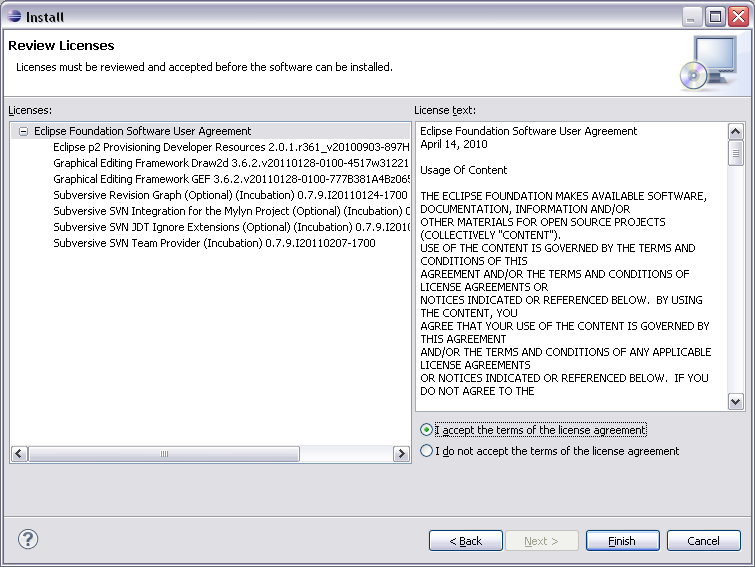
  6. Accept terms of license agreement and click the 'Finish' button in order to start the download of selected features.

    Feature License

  7. To apply installation changes and restart Eclipse click on the 'Yes' button.

    Restart dialog

  8. After Eclipse restart you'll see connectors discovery dialog which will allow you to install Subversive Connectors without registering connectors update site manually.

    Connectors discovery dialog

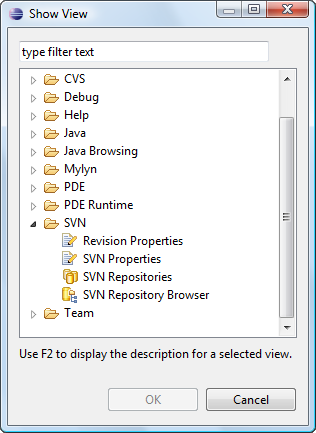
  9. You can find Subversive perspective and views in correspondent dialogs, activated by menu items 'Window > Open Perspective > Other...' and 'Window > Show View > Other...'.

    Open PerspectiveShow View